
No one wants to wait for an AI model to respond, but no one wants to allocate idle GPUs up to the peak-utilization High-Water mark 24/7 either. To ensure you don’t fall into this overprovisioning trap, fast just-in-time model loading becomes essential to reducing costs while maintaining high-quality service for end users. There’s no need to overprovision when you can load models in the blink of an eye, reducing infrastructure costs while keeping the experience smooth and responsive.
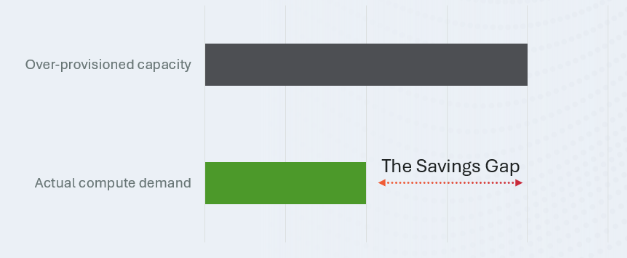
DDN AI appliances combined with the Run:AI Model Streamer deliver exactly this: loading vLLM inference models across multiple GPUs in just a few seconds, enabling you to reap the cost savings of dynamic model provisioning.
Install the Run: AI model streamer
To leverage just-in-time loading and eliminate the “Savings Gap,” you first need to equip your inference environment with the Run:AI Model Streamer. This high-performance library streams tensors directly into GPU memory with maximum concurrency.
Installation Options:
Standalone SDK: For custom integrations, install the core Python package: pip install runai-model-streamer
vLLM Integration: If you are using vLLM, install it with the dedicated Run:ai extension: pip3 install runai-model-streamer [vllm] command.
Tune the Model for Your Workflow
While out-of-the-box model loading with the Run:AI Model Streamer and DDN AI appliances will already load your models fast, you can go even further by preprocessing your model based on the tensor-parallelism level you plan to use. To do so, split the model’s tensors into a number of files matching your GPU count.
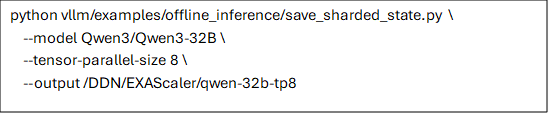
This is accomplished using the save_sharded_state.py utility found in the vLLM repository. This script maps tensors to the specific Tensor Parallelism (TP) rank used in production, allowing each GPU process to read its own dedicated file independently. By pre-sharding, you eliminate the CPU bottleneck of splitting tensors on the fly and allow your hardware to fully saturate your storage bandwidth for truly instant loading. This also removes the model loading amplification effect where each GPU would have to redundantly load the entire model every time, ensuring your network only moves the data you actually need. This can accelerate load times significantly
Pre-sharding the model
For example, to prepare the Qwen3-32B model for a high-performance deployment with a Tensor Parallelism (TP) of 8, run the utility from the vLLM repository:
Tune Concurrency for Performance
The Run:AI Model Streamer can be tuned to achieve optimal performance with EXAScaler. For this test with 8 GPUs, we tested and found that 8 threads produced the best performance. For larger numbers of GPUs you may need to tune for a different thread count.
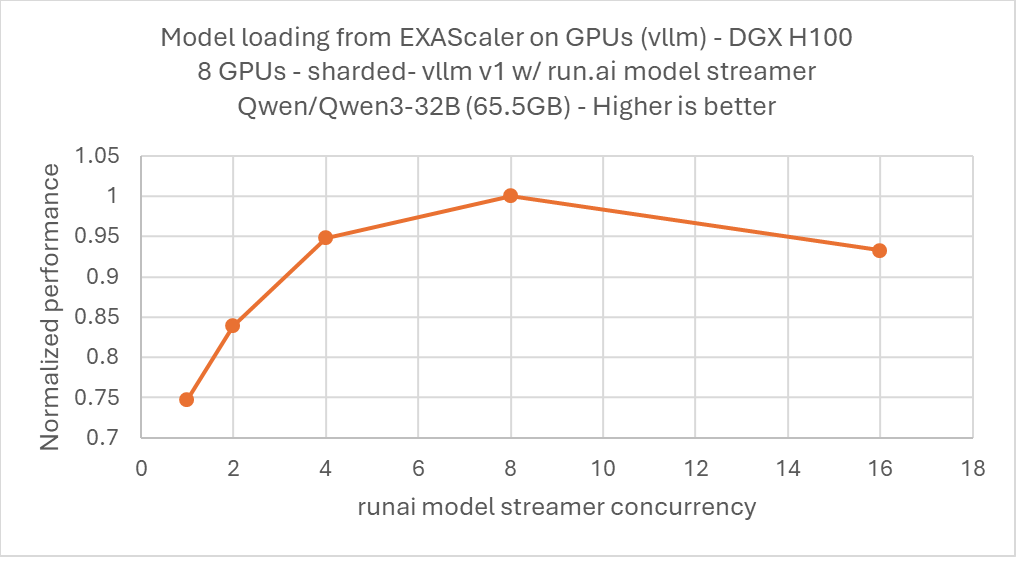
Using 8 GPUs, you can therefore append the following option to your vLLM command line:

Leverage DDN AI Appliances to Reduce Costs
Once you have pre-sharded your model, simply run the following command to start your inference server:

In our experiments, this approach enabled loading Qwen3-32B (65.5GB, non-quantized) in under 4 seconds across 8 GPUs. This allows you to dynamically provision models to reduce costs while maintaining excellent service quality for end users. Compared to local drives, this can cut loading latency in half, enabling better quality of service and finer-grained dynamic GPU provisioning, thereby reducing your overall costs.
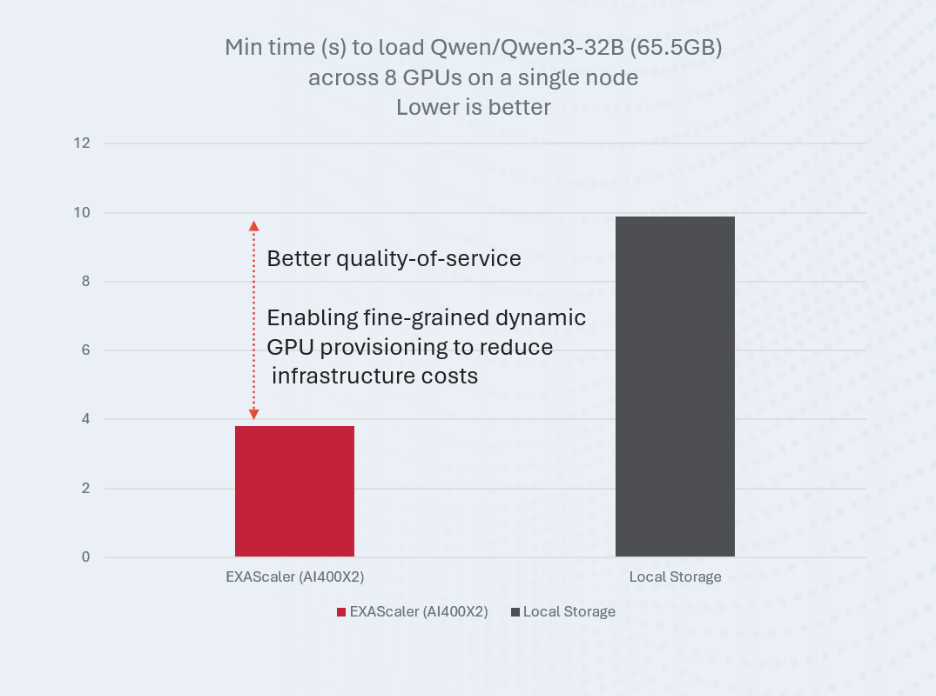
DDN continues to be at the forefront of helping customers achieve the best ROI on their GPU investments. By using existing utilities from vllm along with the Run:AI Model Streamer, DDN can help reduce the overhead associated with having to wait for slow model loading times. For example, if you do a model load for each GPU once per hour, DDN can save up to 10% of your daily GPU runtime compared to using local Storage. This saving directly translates to being able to reduce your GPU footprint by 10%, saving on acquisition costs as well as associated power and cooling. (or GPU rental costs if you are using a cloud provider).